
Getting Started
Welcome to GluonDB! This guide will walk you through setting up your first project and making your first query in just a few minutes.
What You'll Need
- A GluonDB account (sign up at gluondb.com)
- A PostgreSQL database connection string (DSN)
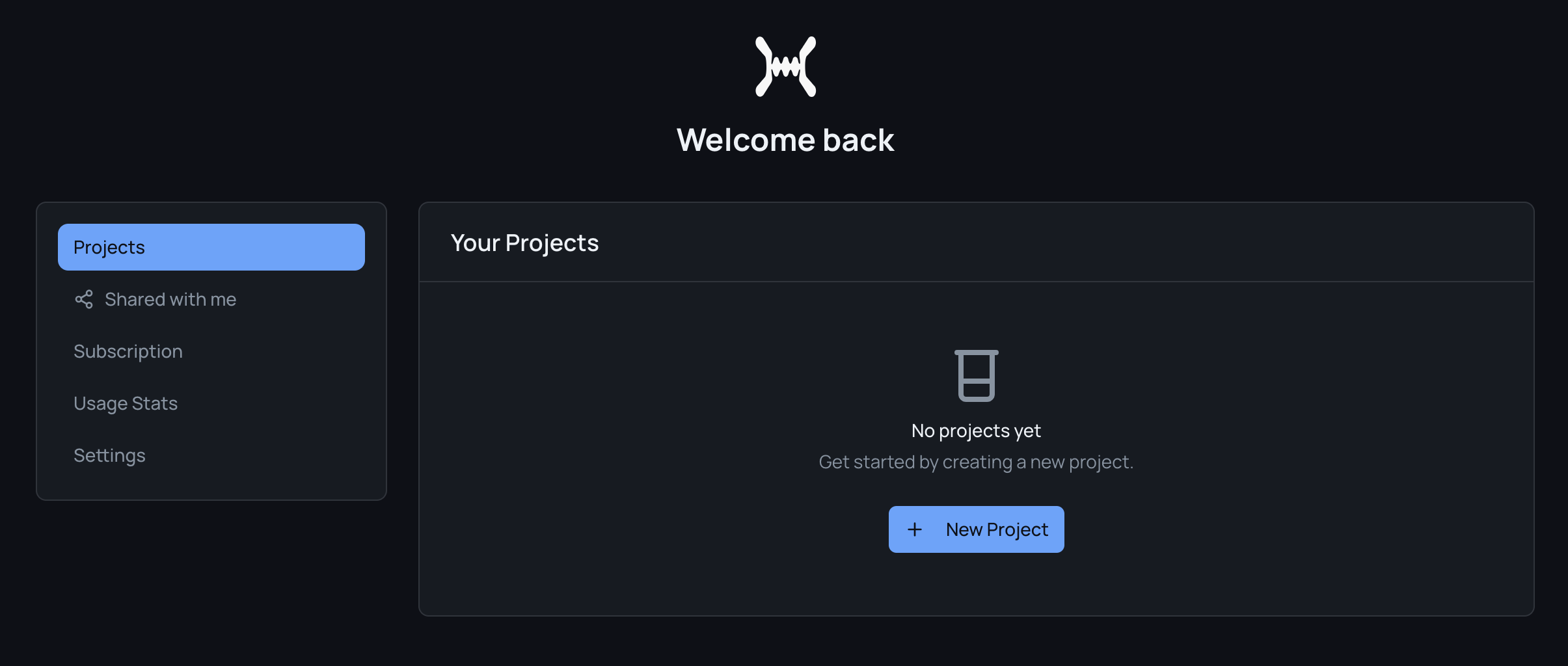
Step 1: Create Your Project
After signing in, click New Project from your dashboard. Give your project a descriptive name — this helps you organize multiple databases later.
Step 2: Connect Your Database
Enter your PostgreSQL connection string (DSN) to link your database. GluonDB will securely connect and begin indexing your schema.
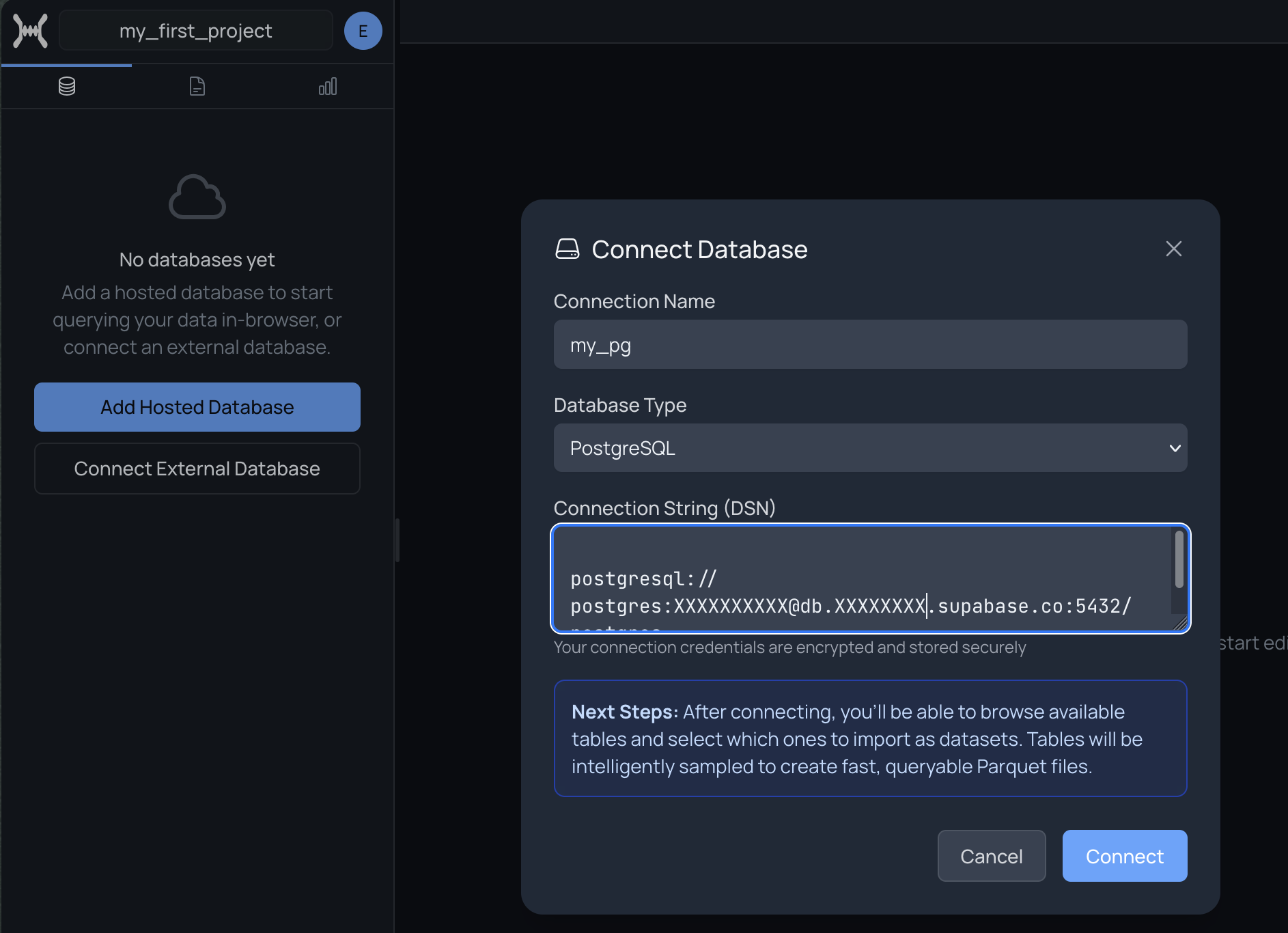
> Security Tip: We recommend creating a dedicated read-only user for GluonDB. See our Secure DSN strings guide for step-by-step instructions.
Step 3: Make Your First Query
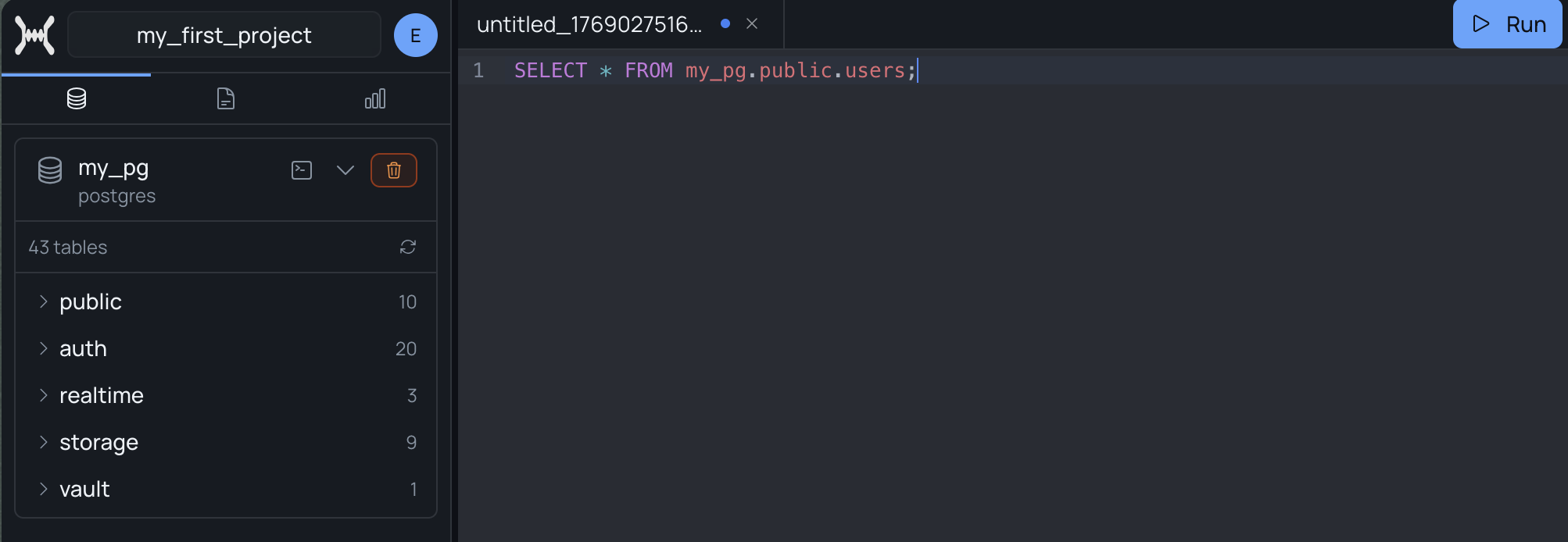
Once connected, you can start querying immediately. Use the SQL editor to write queries directly, or let the Agent help you explore your data.
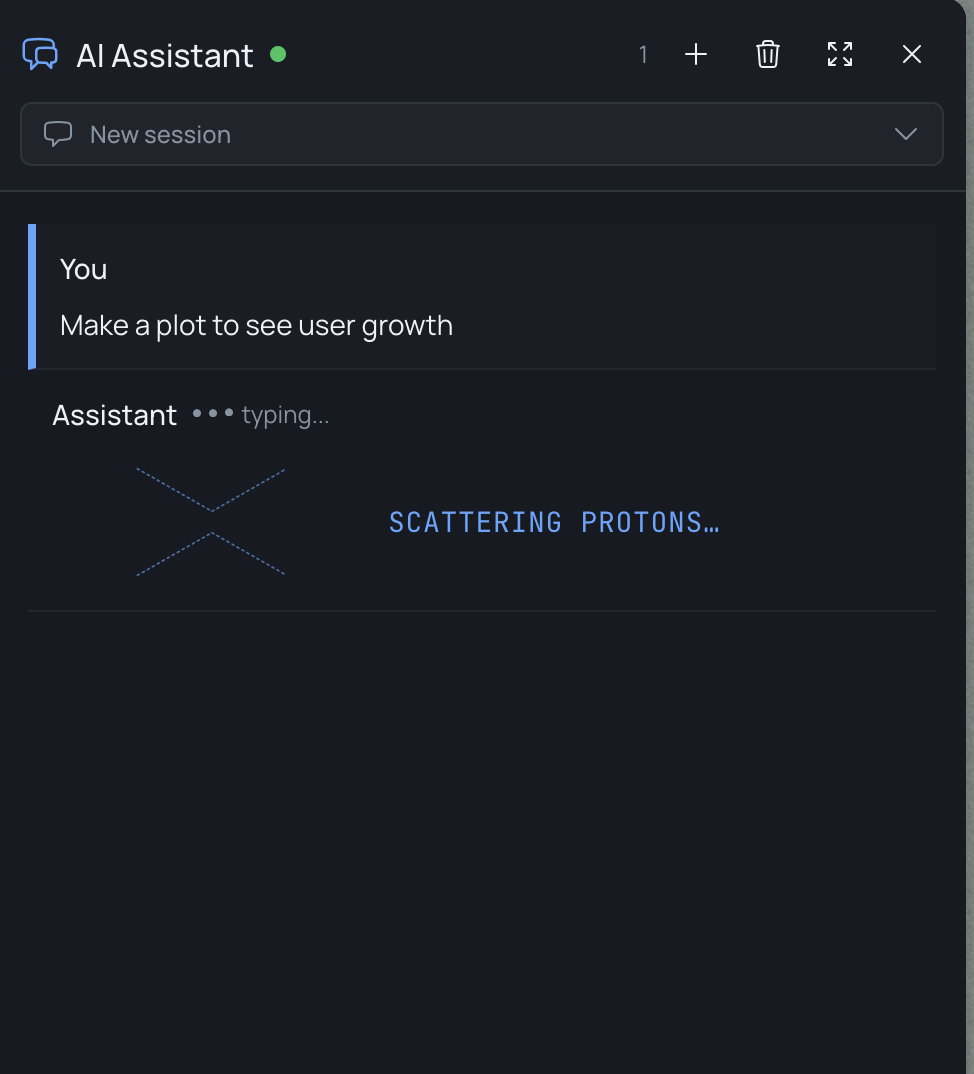
Step 4: Chat with the Agent
The GluonDB Agent understands natural language. Ask questions like:
- *"Show me the top 10 customers by revenue"*
- *"Create a chart of monthly signups"*
- *"Build a dashboard for sales performance"*
Next Steps
Now that you're set up, explore what GluonDB can do:
- GluonDB Agent — Learn advanced Agent capabilities
- gluonDB SDK — Integrate GluonDB into your applications
- Secure DSN strings — Best practices for database security
Need help? Reach out to us on support@gluonDB.com.